
Step-by-step guide
Edit a product: photo, description and POS visibility
5 steps. Prefer to watch? Play the 1:19 video.
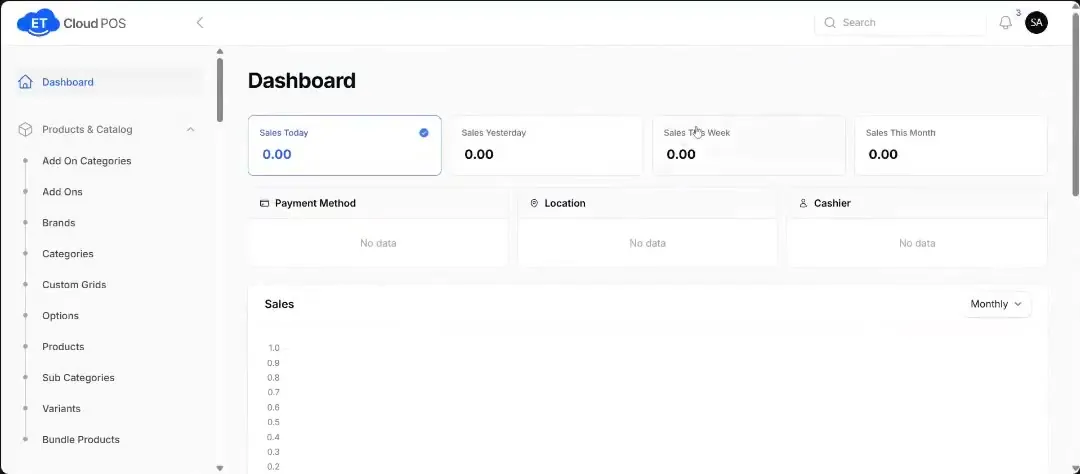
Go to Product & Catalog → Products and click Edit on the product.
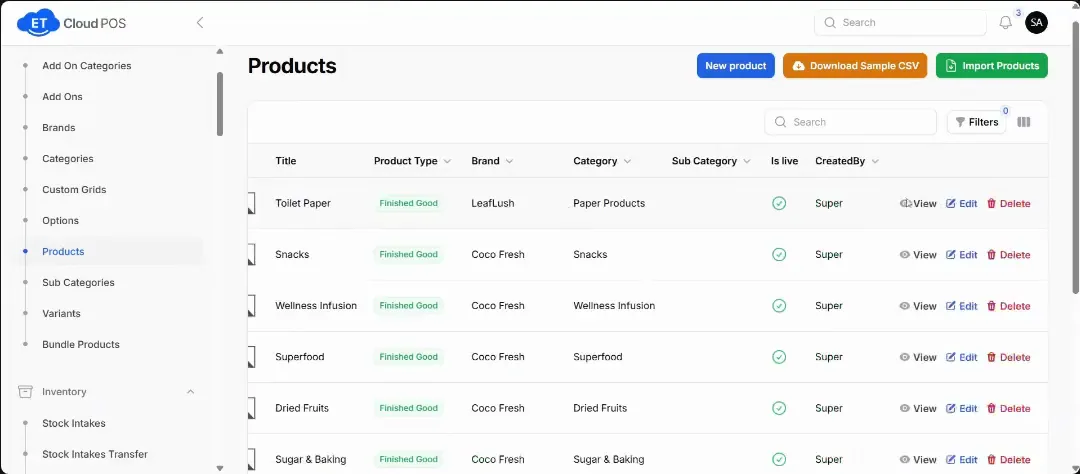
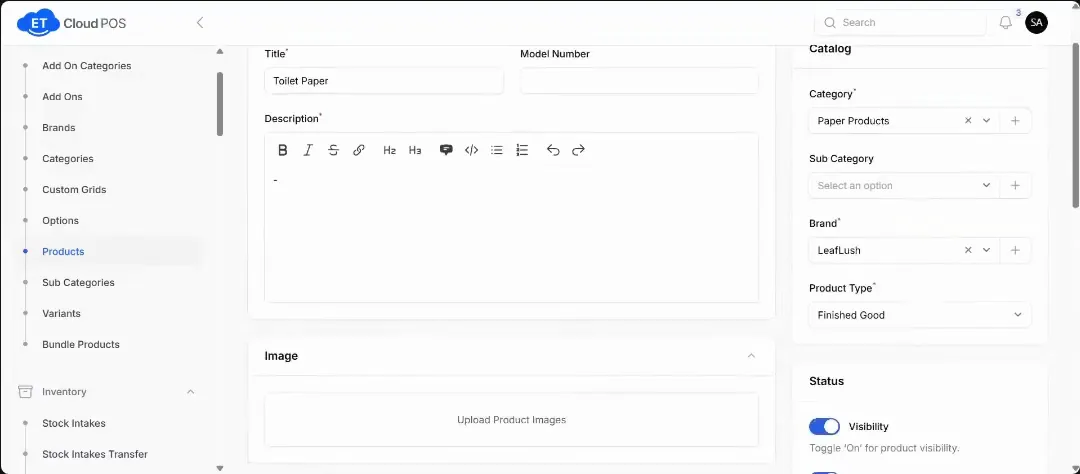
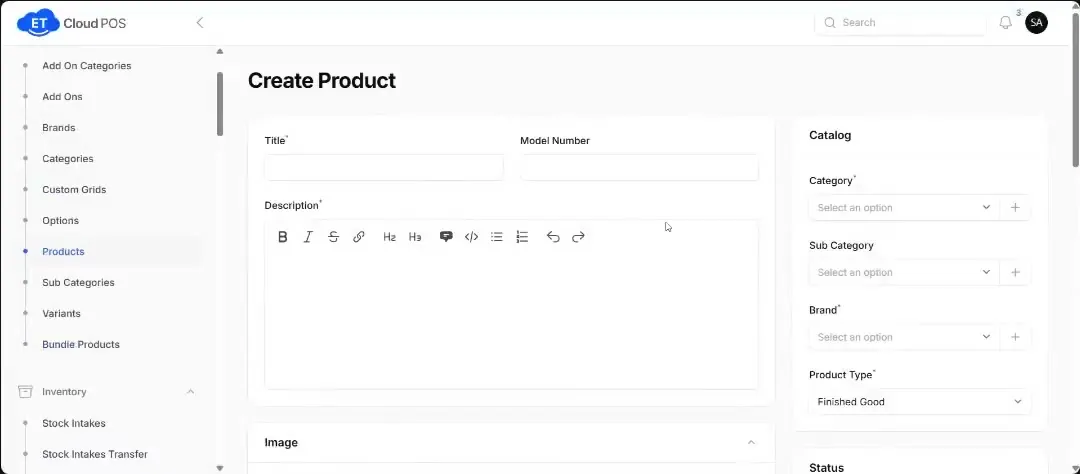
Watch this step at 0:18 → Add a description and upload a product image, and change any other details.
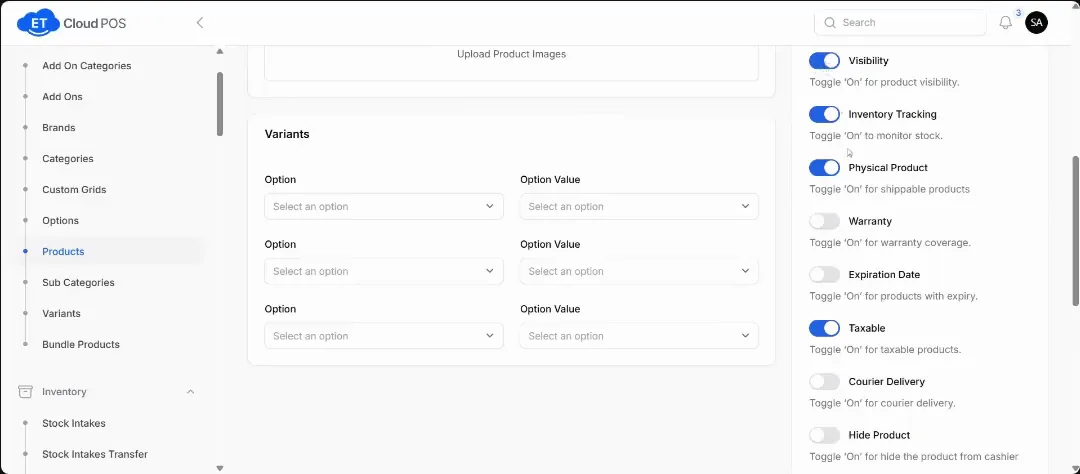
Watch this step at 0:24 → Use the toggles to switch the product off on the front POS if you don't want cashiers to see it.
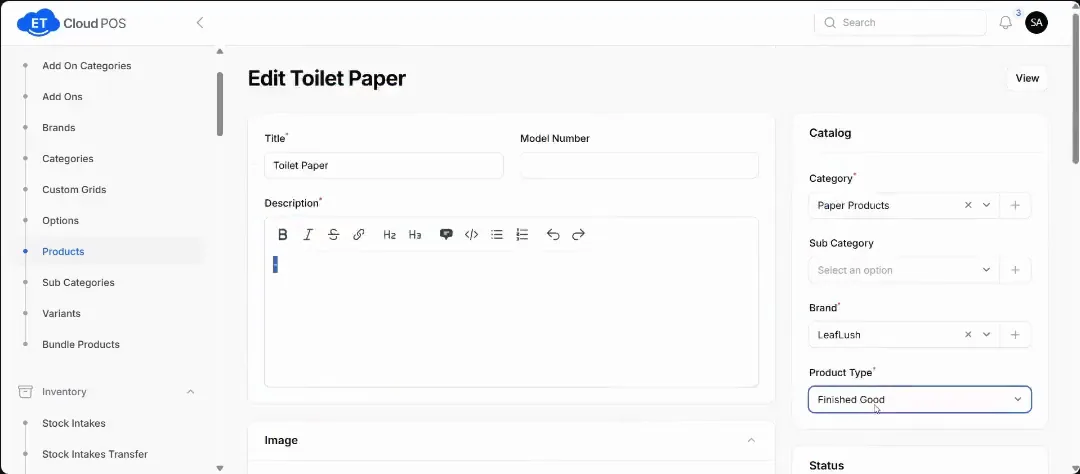
Watch this step at 0:44 → Set the Product Type: finished good, raw material or semi-finished.
Watch this step at 0:52 → Save.
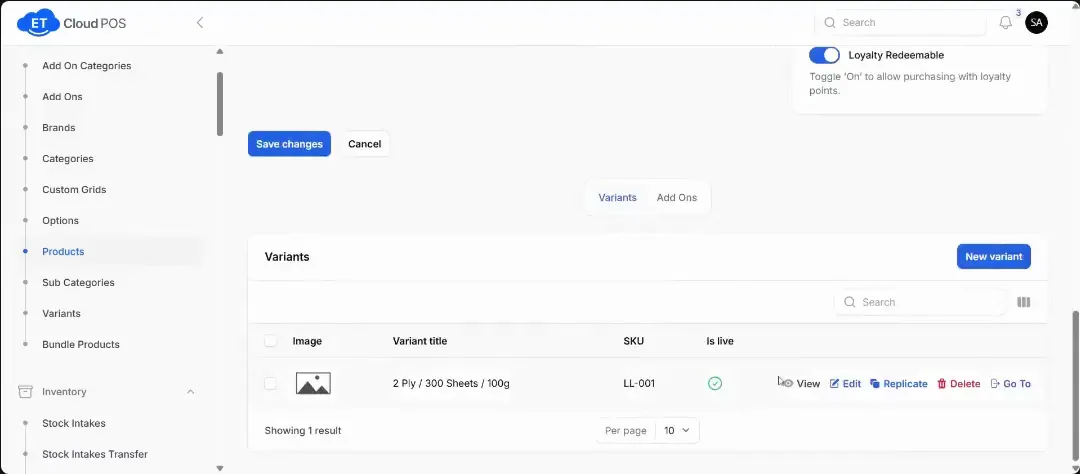
Watch this step at 0:32 →
Tip Product types: raw materials combine into one finished good. For coffee, the powder, milk and sugar are raw materials and the cup you sell is the finished good.
Still stuck?
Our support team is there 24/7. Tell us what you were trying to do and we'll walk you through it.