
Edit a product: photo, description and POS visibility
1:19 video · captions on
Steps
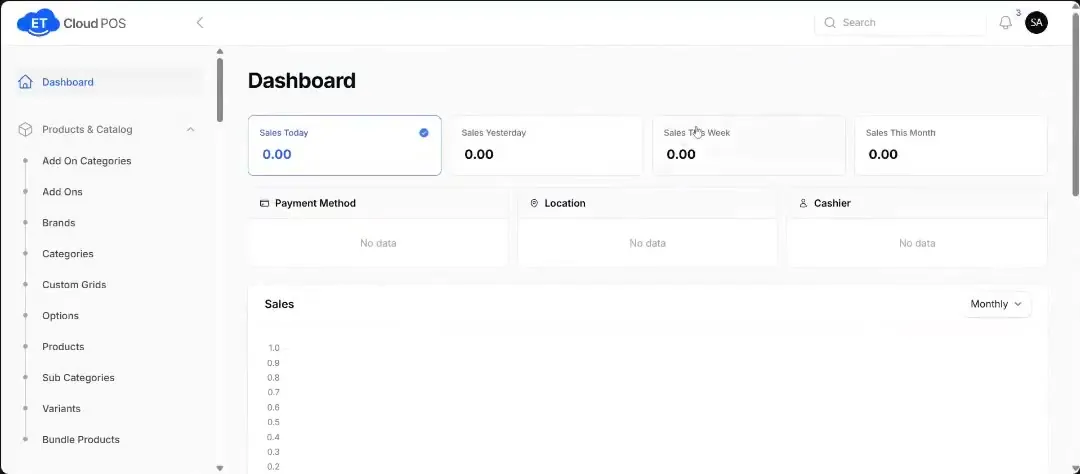
- Go to Product & Catalog → Products and click Edit on the product.
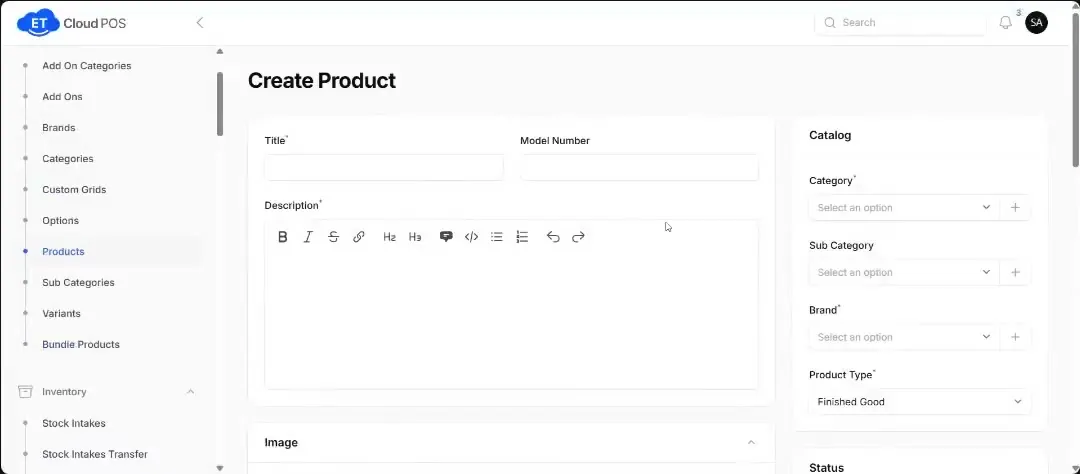
- Add a description and upload a product image, and change any other details.
- Use the toggles to switch the product off on the front POS if you don't want cashiers to see it.
- Set the Product Type: finished good, raw material or semi-finished.
- Save.
Tip Product types: raw materials combine into one finished good. For coffee, the powder, milk and sugar are raw materials and the cup you sell is the finished good.
Step-by-step guide with screenshotsTranscript
Tap a line to play from there.
Still stuck?
Our support team is there 24/7. Tell us what you were trying to do and we'll walk you through it.