
Bulk import products from a CSV
1:49 video · captions on
Steps
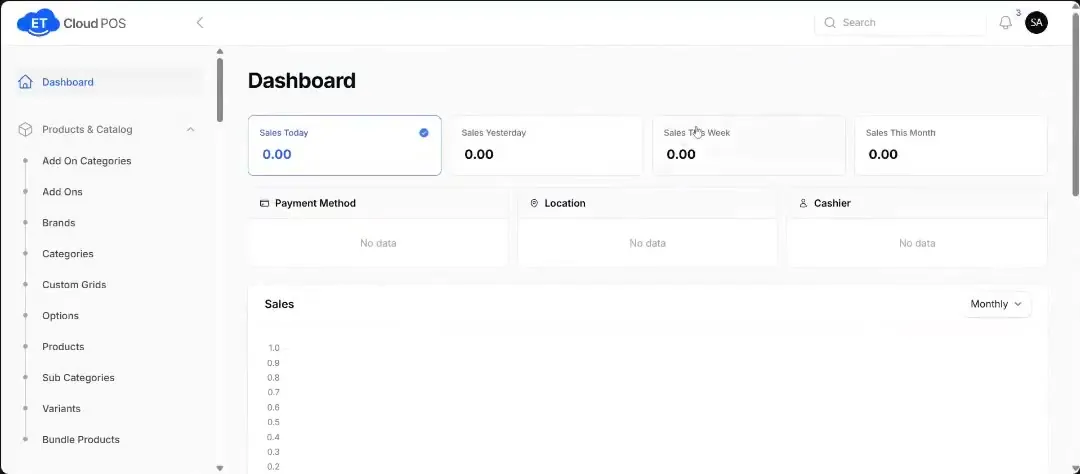
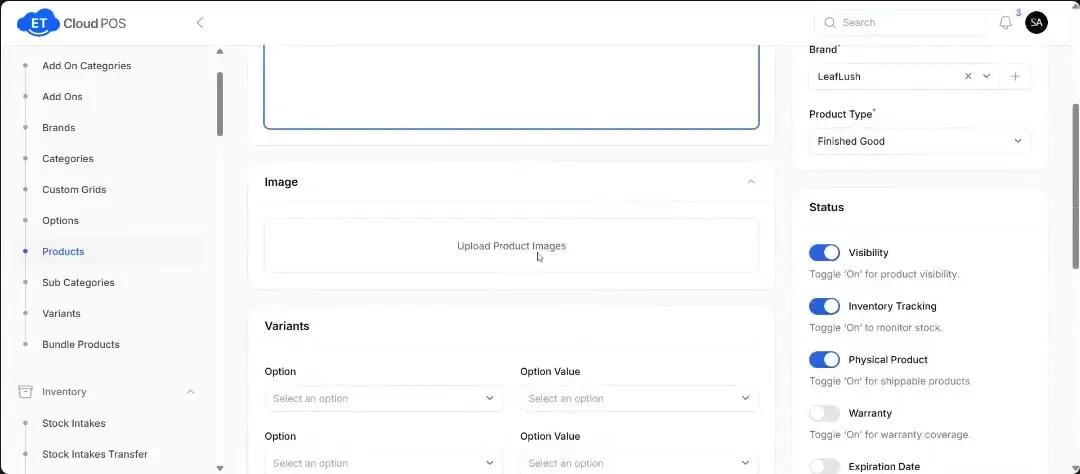
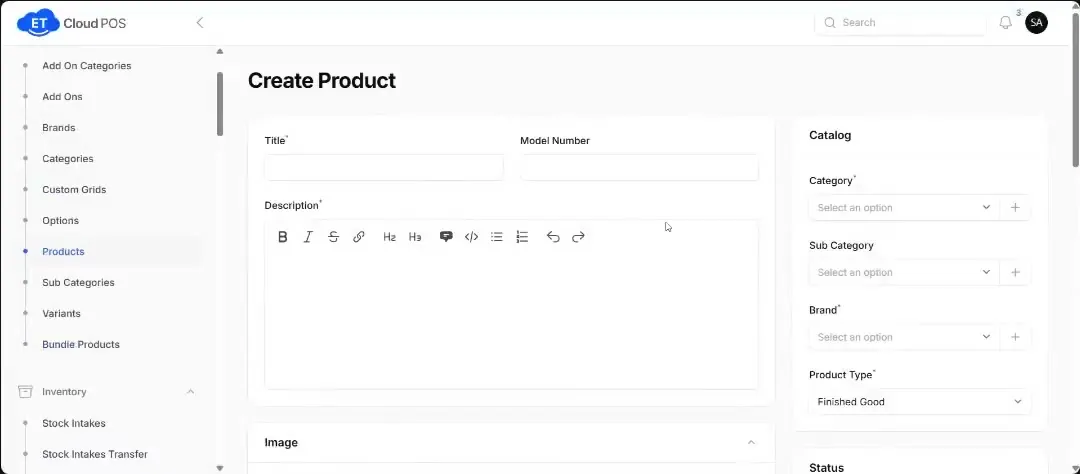
- On Products, click Download Sample CSV and fill it in.
- Click Import Products and browse for your file.
- Preview the data. It shows how many rows there are, how many are valid and how many have errors.
- Fix any errors on screen, or fix them in the spreadsheet and upload it again.
- Confirm & Import only appears when there are zero errors.
Tip Re-uploading the same products: “Create new products” adds every row as a new product. “Replace existing variants” only updates the rows you changed. This screen is for product details, not for adding new stock.
Step-by-step guide with screenshotsTranscript
Tap a line to play from there.
Still stuck?
Our support team is there 24/7. Tell us what you were trying to do and we'll walk you through it.