
Stock adjustments for damaged or expired items
1:38 video · captions on
Steps
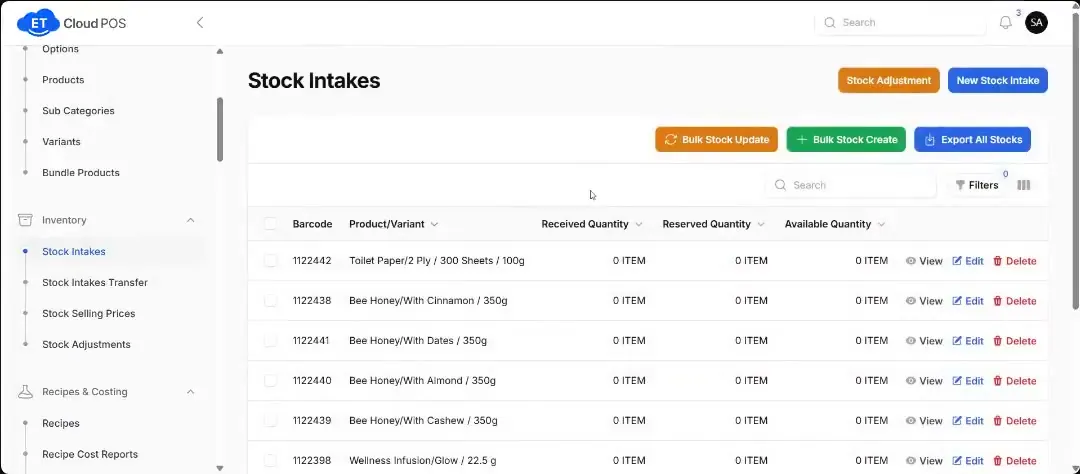
- Go to Inventory → Stock Adjustments and click the new adjustment button at the top right.
- Choose the product and variant. The current stock fills in.
- Enter how many to remove.
- Pick a reason (damaged, rejected, expired and so on), add a note and click Create.
- The adjustment is now listed under Stock Adjustments, so you can always see why stock went down.
Tip You can only adjust a product that has stock. You can ignore Recipes & Costing here.
Step-by-step guide with screenshotsTranscript
Tap a line to play from there.
Still stuck?
Our support team is there 24/7. Tell us what you were trying to do and we'll walk you through it.