
Step-by-step guide
Receive stock with a GRN (Goods Received Note)
4 steps. Prefer to watch? Play the 1:07 video.
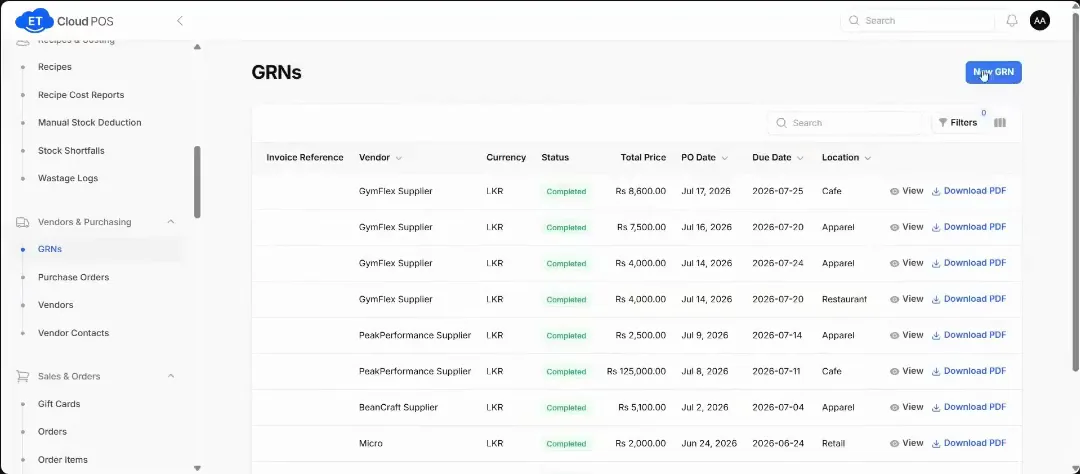
When the goods arrive, go to GRN and create a new GRN.
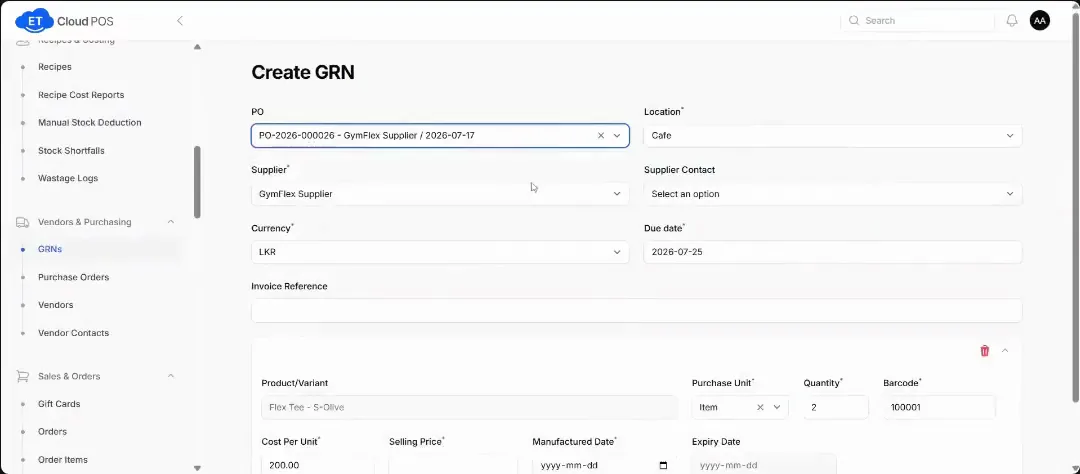
Watch this step at 0:16 → Choose the purchase order. The supplier, location and products fill in.
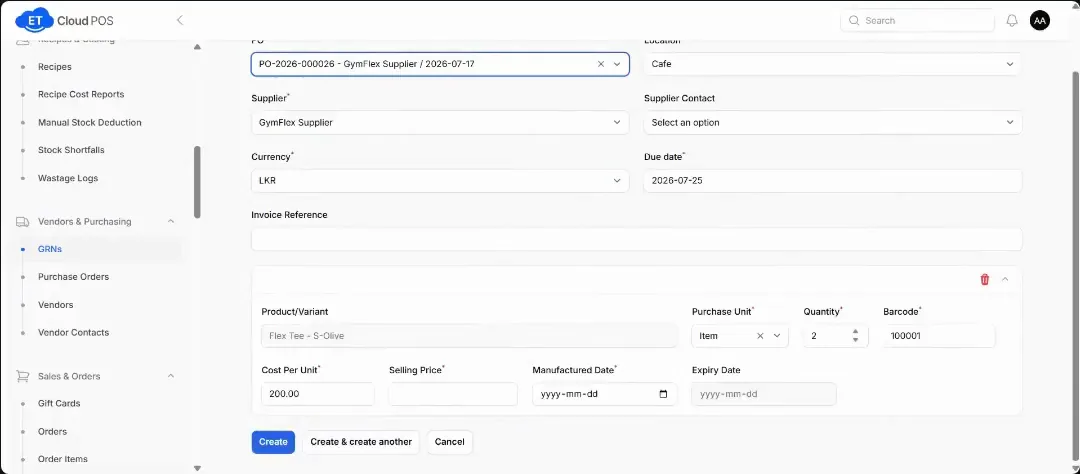
Watch this step at 0:28 → If the vendor sent less than you ordered, change the quantity.
Watch this step at 0:48 → Enter the selling price and the purchase cost, then click Create. The stock is added for you.
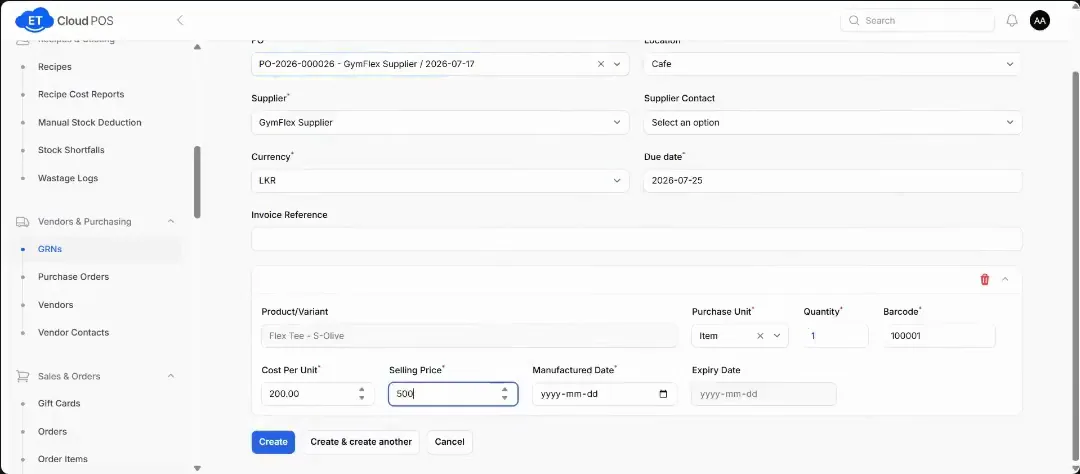
Watch this step at 0:56 →
Still stuck?
Our support team is there 24/7. Tell us what you were trying to do and we'll walk you through it.