
Step-by-step guide
Manage payment methods
3 steps. Prefer to watch? Play the 1:03 video.
Go to Settings → Payment Methods.
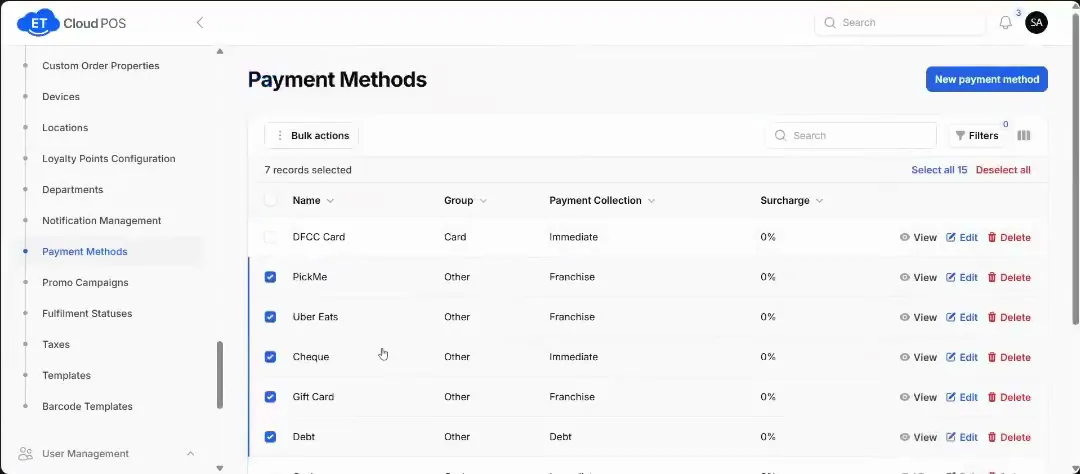
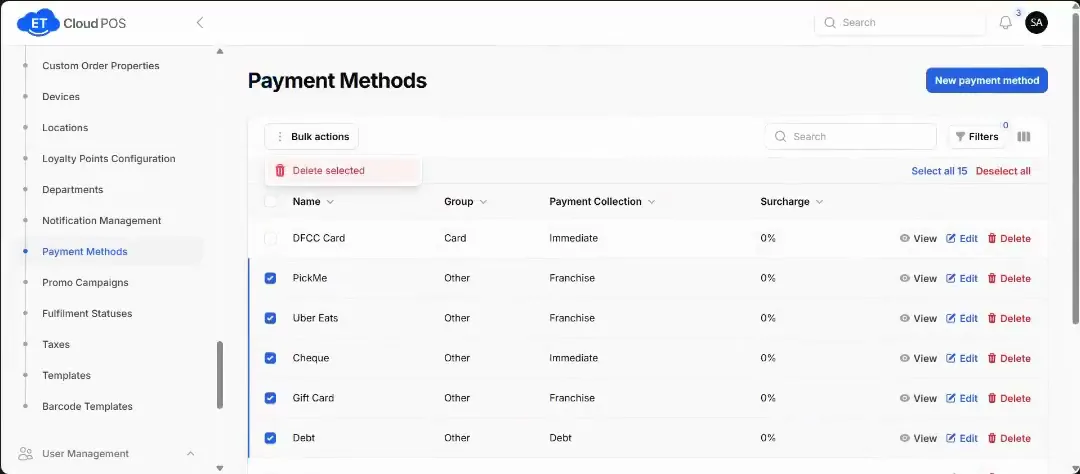
Watch this step at 0:08 → Tick the methods you don't use (Koko, Mintpay, gift cards, cheque and so on) and bulk delete them. They disappear from the POS checkout.
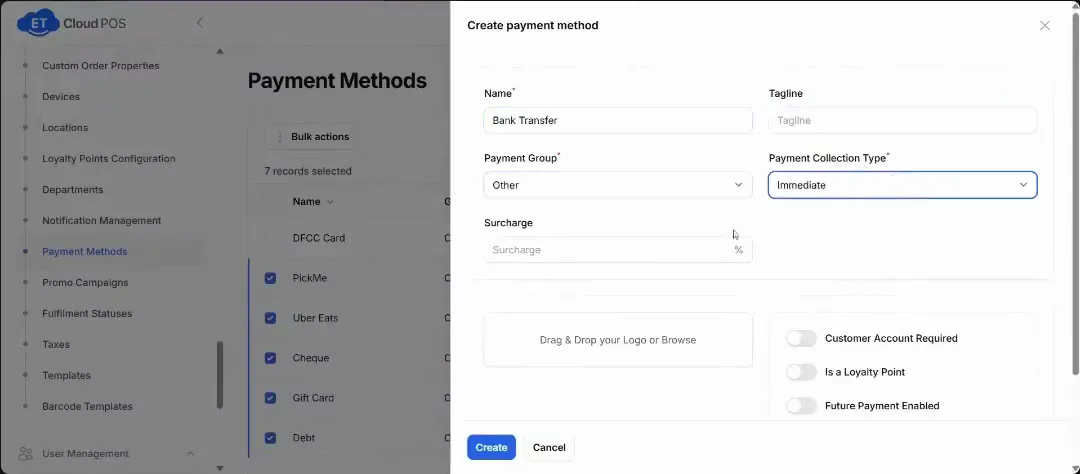
Watch this step at 0:14 → To add one, such as Bank Transfer: create a new payment method, set the group to Other and collection to Immediate, add any surcharge, and choose whether it needs a customer account or earns loyalty points.
Watch this step at 0:42 →
Tip Card payments need a card machine, from your bank or from ET Cloud.
Still stuck?
Our support team is there 24/7. Tell us what you were trying to do and we'll walk you through it.