
Add stock for one product (New Stock Intake)
1:05 video · captions on
Steps
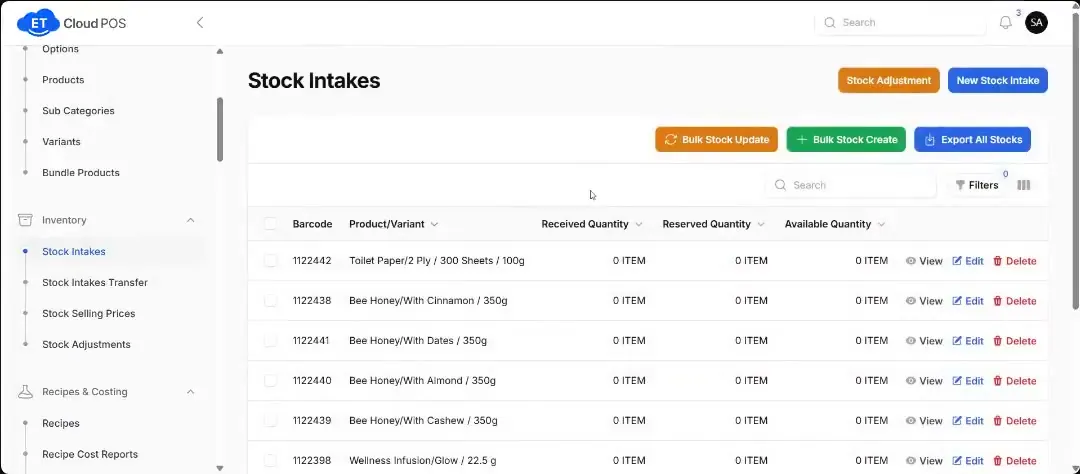
- On Stock Intakes, click New Stock Intake.
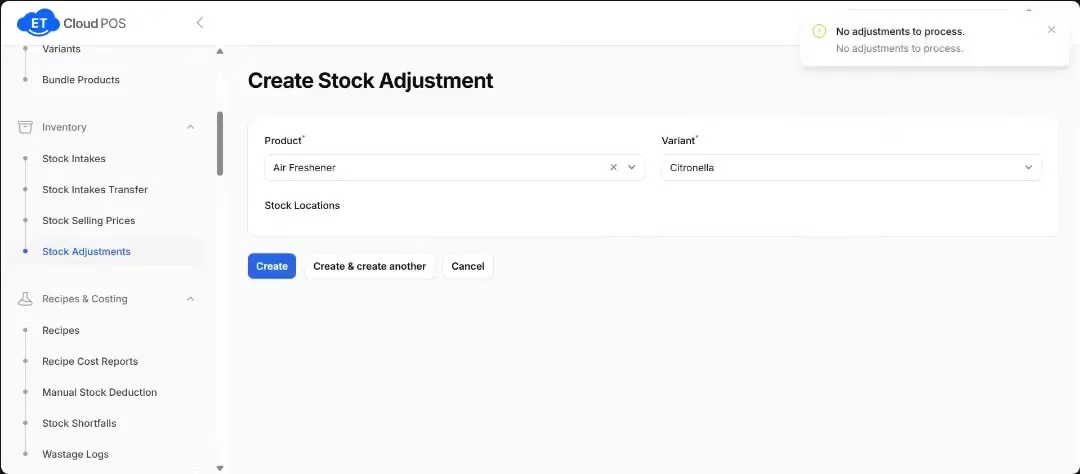
- Choose the product and variant. The barcode fills in by itself.
- Choose the vendor and the date you received it.
- Enter the quantity, the Amount and the Cost, then click Create.
Tip Amount is the selling price. Cost is what you paid. If you already entered a stock quantity when you created the product, you don't need a separate intake.
Step-by-step guide with screenshotsTranscript
Tap a line to play from there.
Still stuck?
Our support team is there 24/7. Tell us what you were trying to do and we'll walk you through it.